
The wifi key listed on the label of the Livebox is rarely the one you want to keep. Too long, impossible to dictate over the phone, it often ends up written on a piece of paper stuck to the wall. Changing this key takes a few minutes, but several technical details need to be anticipated to avoid losing the connection on all devices in the household.
Livebox wifi key and Orange account password: two distinct accesses
The confusion between these two identifiers frequently arises on support forums. The wifi password is independent of the Orange account password. Changing one has no effect on the other.
The wifi password is modified via the local interface of the Livebox, accessible from a browser at the address 192.168.1.1 (or simply by typing “livebox” in the address bar). The Orange account password, on the other hand, is managed from the “Connection and security” section of the online customer area.
Mixing up the two can lead to resetting the wrong identifier, which unnecessarily complicates the situation. Before any manipulation, it is better to clearly identify which of the two is causing the problem. A detailed guide on the change of the Orange wifi password ensures that the correct procedure is followed according to the model of Livebox.
Accessing the interface 192.168.1.1: wired connection as a precaution
The entire procedure relies on accessing the administration interface of the Livebox. The address 192.168.1.1 opens from any browser, provided you are connected to the box’s network.
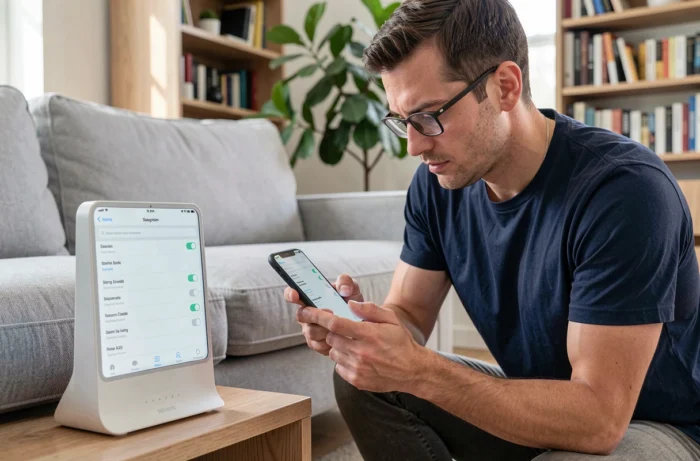
The classic trap: changing the wifi key from a device connected via wifi. As soon as the new password is validated, this device instantly loses its connection. It then needs to be manually reconnected with the new key, without being able to verify that the change has been properly recorded.
The most reliable solution is to connect a computer to the Livebox via an Ethernet cable before starting the modification. The cable keeps the connection active during and after the change, allowing time to verify that everything is working.
Access credentials for the interface
The interface requires an administrator password. By default, this password is listed on the label stuck under the Livebox, next to the wifi network name. On some recent models, it is also displayed on the box’s screen itself.
If this administrator password has been changed and forgotten, resetting the Livebox (holding the reset button for several seconds) restores the factory settings, including the original wifi key.
WPA2 or WPA3 encryption on Livebox: which protocol to check
Changing the wifi key is also an opportunity to check the type of active encryption. Recent Liveboxes (models 6 and 7) offer WPA3, a newer protocol that enhances protection against brute-force decryption attempts.
Older protocols like WEP have known vulnerabilities. The minimum recommended in 2026 remains WPA2, but WPA3 provides an additional layer of security when all household devices support it.
The problem: some older devices (printers, smart objects, older generation gaming consoles) do not recognize WPA3. Activating this protocol may prevent them from connecting. The Livebox interface usually offers a mixed WPA2/WPA3 mode, which ensures compatibility while benefiting from enhanced encryption when the device allows it.
Check the protocol from the interface
In the wifi menu of the interface 192.168.1.1, the “Security” or “Encryption” section displays the current protocol. Switching from WEP to WPA2 or WPA3 disconnects all devices, which must then be reconfigured with the new key and the new protocol.
Reconnect devices after changing the wifi password
This is the step that many underestimate. Changing the wifi key does not only concern the main computer. Each device connected to the network must be reconfigured individually.
- Smartphones and tablets: in the wifi settings, “forget” the old network and then reconnect with the new key
- The Orange TV decoder, if connected via wifi to the Livebox (and not via Ethernet or CPL), loses its connection and must be reconfigured from its network menu
- Smart objects (speakers, cameras, thermostats) often require a complete reconfiguration via their dedicated app, as they do not have an interface to enter a new password directly
- Wifi printers, which store the key in memory and must be reassociated with the network, sometimes via the WPS button on the Livebox
For a household with about ten connected devices, the operation can take a good amount of time. Noting the new key before validating the change avoids having to access the interface again to find it.

Orange guest wifi: an alternative to limit key changes
Rather than sharing the main key with every visitor (and then changing it out of caution), recent Liveboxes allow you to activate a guest wifi network separate from the main network.
This secondary network has its own password, which can be modified independently. Devices that connect to it access the internet but remain isolated from the local network: they cannot see shared files or other household devices.
Activation is done from the interface 192.168.1.1 or from the Orange and Me app. The guest wifi can be disabled at any time, without affecting the connection of household devices on the main network.
Livebox 6 and 7: view the key directly on the box’s screen
On the most recent models, the wifi key is displayed directly on the touchscreen of the Livebox, without needing a computer or the web interface. This feature allows you to check or communicate the key without accessing 192.168.1.1, which simplifies things when you don’t have an Ethernet cable on hand.
Changing the wifi password of your Livebox remains a technically simple operation. The real difficulty lies afterward: reconnecting each device, checking the encryption protocol, and not confusing this key with that of the Orange account. Preparing the list of affected devices before starting the modification saves more time than the manipulation itself.